
Everything you need to know to register, log in, manage numbers, and get started with ConvoLink on your browser.
Note: ConvoLink is supported on Chrome.
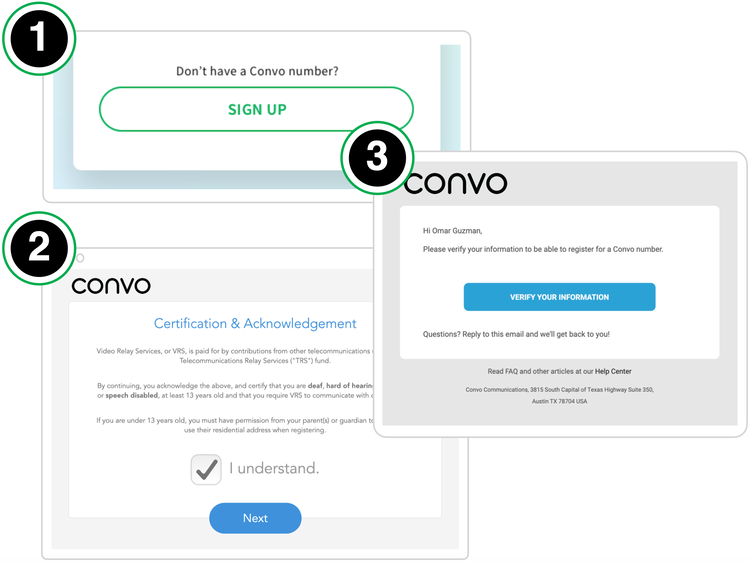
Get a Convo number
-
On login.convo.io, click SIGN UP
-
Complete the registration process
-
Check your email for further instructions
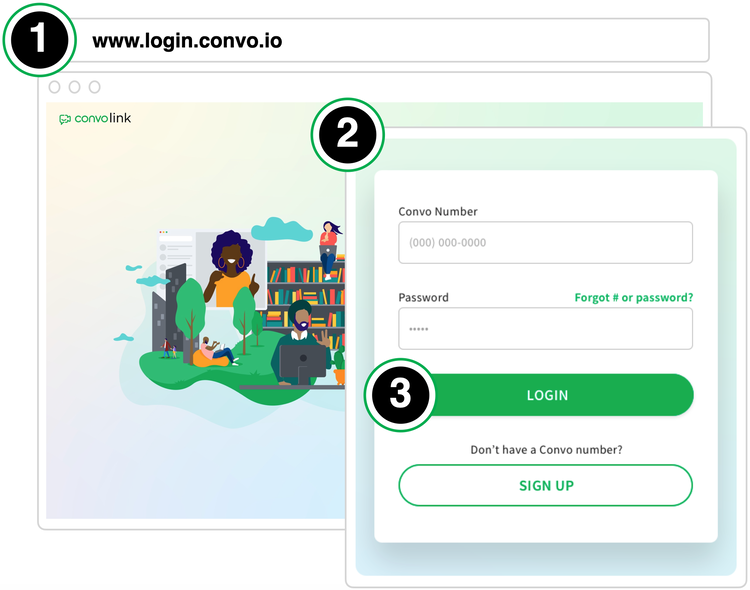
Login
-
Go to login.convo.io
-
Type in your Convo number and password
-
Click LOGIN button
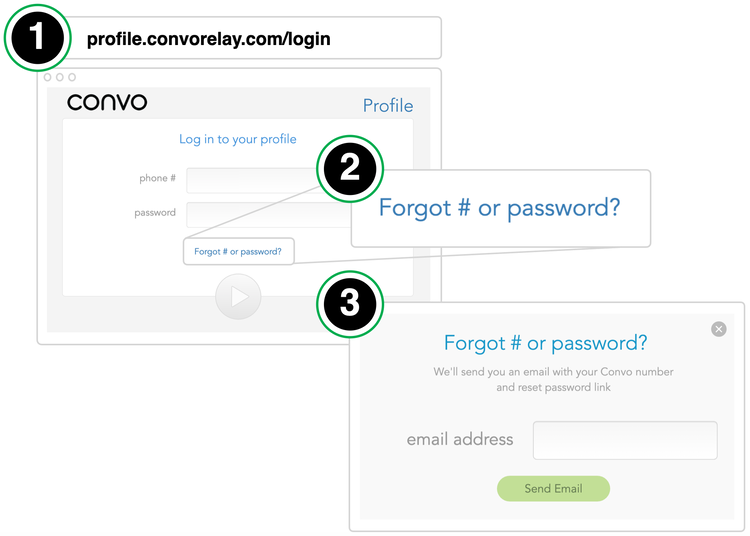
Access your Convo number or password
-
Click Forget # or password?
-
Type in your email address and click Send Email button

Link multiple Convo numbers
With ConvoLink, you can easily switch to other Convo numbers without having to log out and log in to another account. There is no limit to how many Convo numbers you can add to ConvoLink.
-
Click the USER icon at the top-right corner to view the menu
-
Click Add another number
-
A window will appear. Type in the Convo number and password you want to add
-
Click the ADD NUMBER button
-
Click the USER icon at the top-right corner to view all Convo numbers linked to your account
-
Call history cannot be deleted in ConvoLink
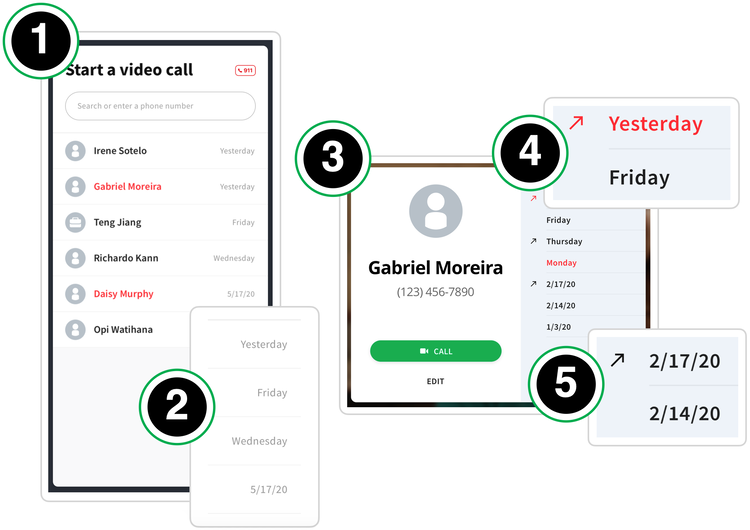
View call history
-
On the home screen, Call History is on the left-sidebar
-
Calls are listed from most recent to least recent
-
To view full call history for a specific number, click on the number in the Call History to open up a Contact Card
-
Calls in red are incomplete or missed calls
-
Calls with an upward arrow are outbound calls. Calls without an arrow are inbound calls
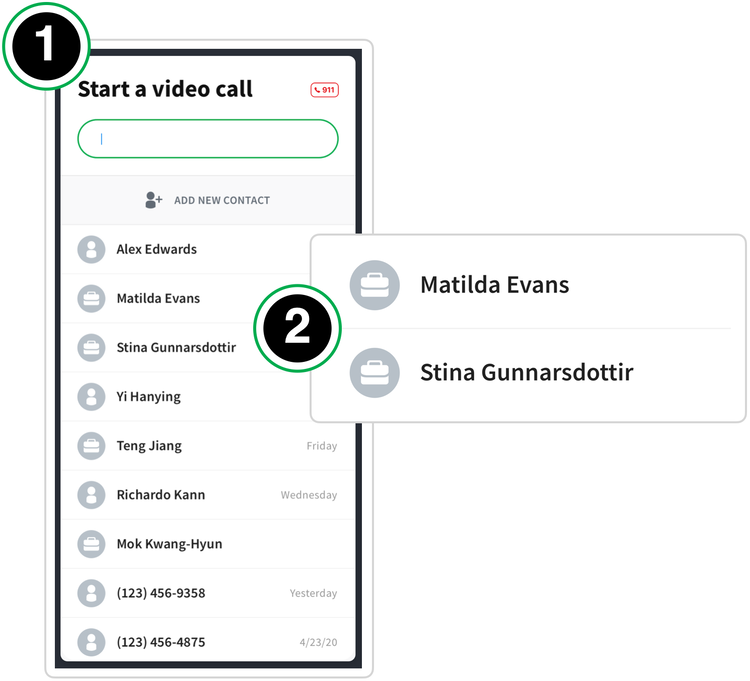
View organizations contacts
-
If you are part of an organization that has a directory, you can view the organization contacts in your Contact List.
-
Organization contacts are differentiated from personal contacts by the briefcase icon
Send and receive video mail
With ConvoLink, you can send video mail. However, you will not be able to receive or view your video mail on ConvoLink.
To view your video mail, please use one of our apps. If you don't have our apps, you can download them at convorelay.com/download. Your video mail is also sent to the email address associated with your Convo account.
Enable the camera and microphone (Chrome)
-
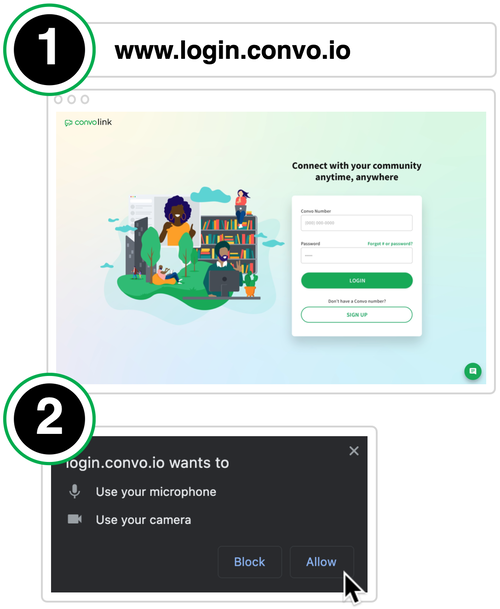
When you log in at www.login.convo.io, a prompt will pop up
-
Click to allow your browser to use the camera and microphone
Unblock the camera in your browser (Chrome)
-
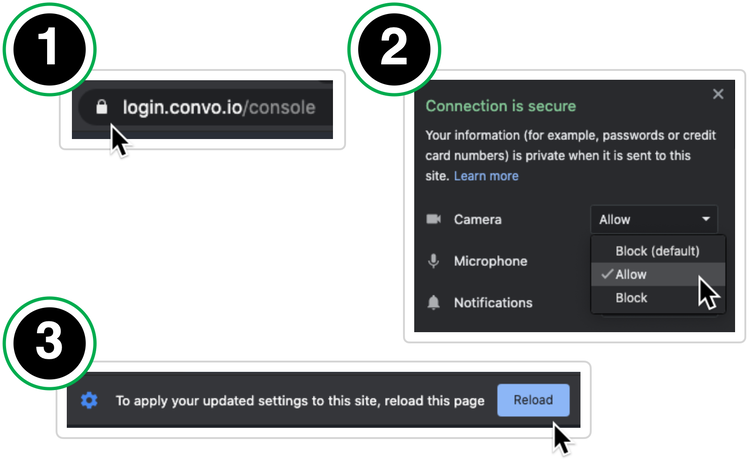
Click on the lock icon in the address bar
-
In the permission dialog, change Block to Allow for Camera
-
Reload the page
Unblock the microphone in your browser (Chrome)
-
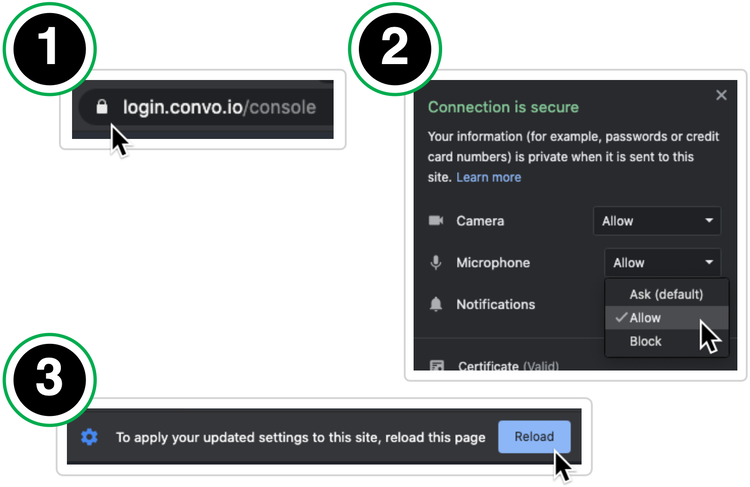
Click on the lock icon in the address bar
-
In the permission dialog, change Block to Allow for Microphone
-
Reload the page
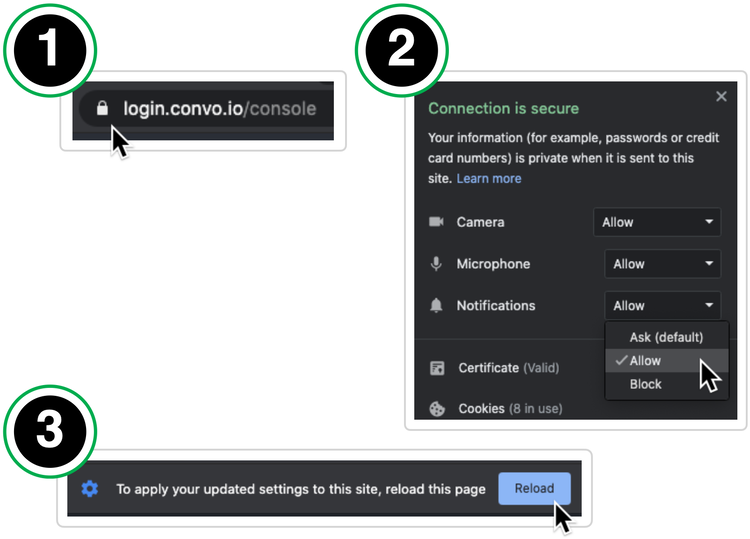
Unblock the notifications in your browser (Chrome)
-
Click on the lock icon in the address bar
-
In the permission dialog, change Block to Allow for Notifications
-
Reload the page
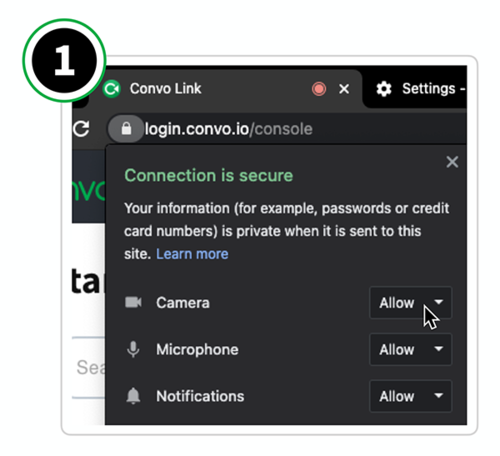
Video privacy (Chrome)
While not in a call, click the padlock icon in the Chrome browser to disable video.
How to use Chrome Live Caption feature with ConvoLink
Note: Live Caption is auto-captioning provided by Google, and Convo is not responsible for its accuracy. Also, please know that Live Caption is a tool not intended to replace VRS, but to add value to your call experience.
Notifications (Chrome on macOS)
Be sure to enable notifications in Chrome, even if ConvoLink itself is set to allow notifications.
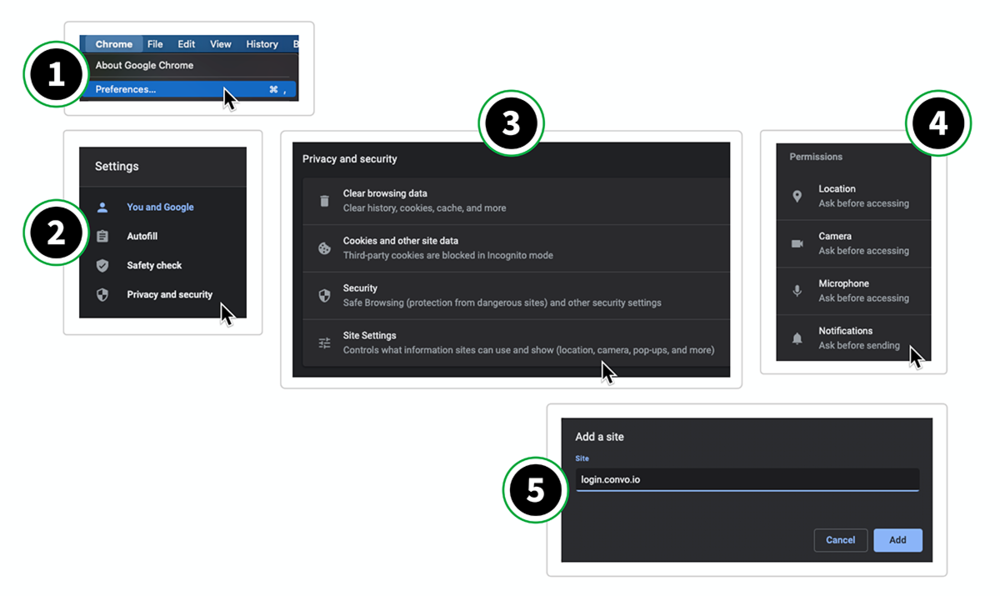
On your computer, open Chrome.
-
At the top menu, click Chrome → Preferences.
-
Click Privacy and Security.
-
Click Site Settings.
-
Click Notifications.
-
Add login.convo.io to the “Allow” list.
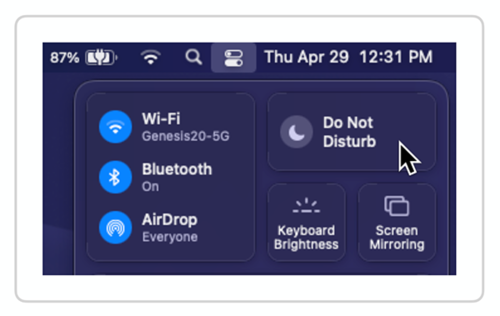
If notifications still don’t work, Do Not Disturb may be enabled on your Mac. To fix this, make sure Do Not Disturb is turned off.
Notifications (Chrome on Windows)
Be sure to enable notifications in Chrome, even if ConvoLink itself is set to allow notifications.
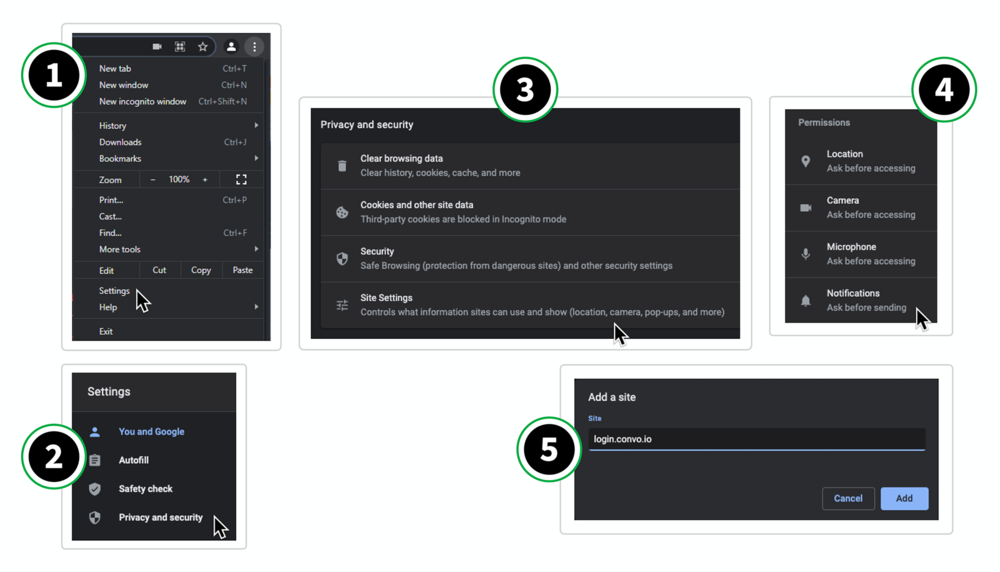
On your computer, open Chrome.
-
At the top-right of your Chrome window, click the 3 vertical dots, then Settings.
-
Click Privacy and Security.
-
Click Site Settings.
-
Click Notifications.
-
Add login.convo.io to the “Allow” list.
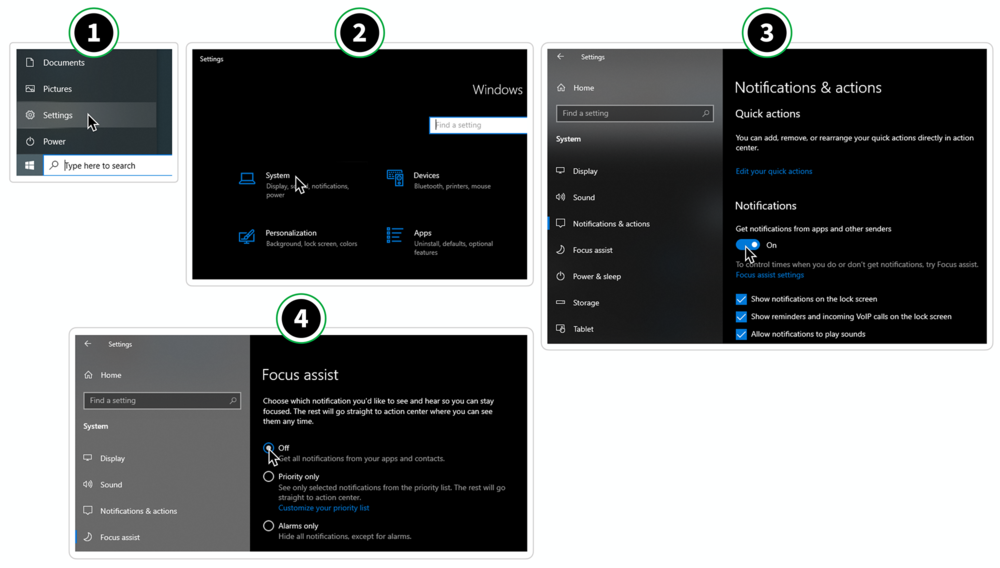
If notifications still don’t work, Focus Assist may be blocking notifications on your PC. To fix this:
-
Click Windows icon, then Settings.
-
Click System.
-
Click Notifications and Actions, and make sure Notifications is turned on.
-
Next, click Focus Assist on the left side of the same window and make sure Focus Assist is turned off.