Knowing your way around
The interface
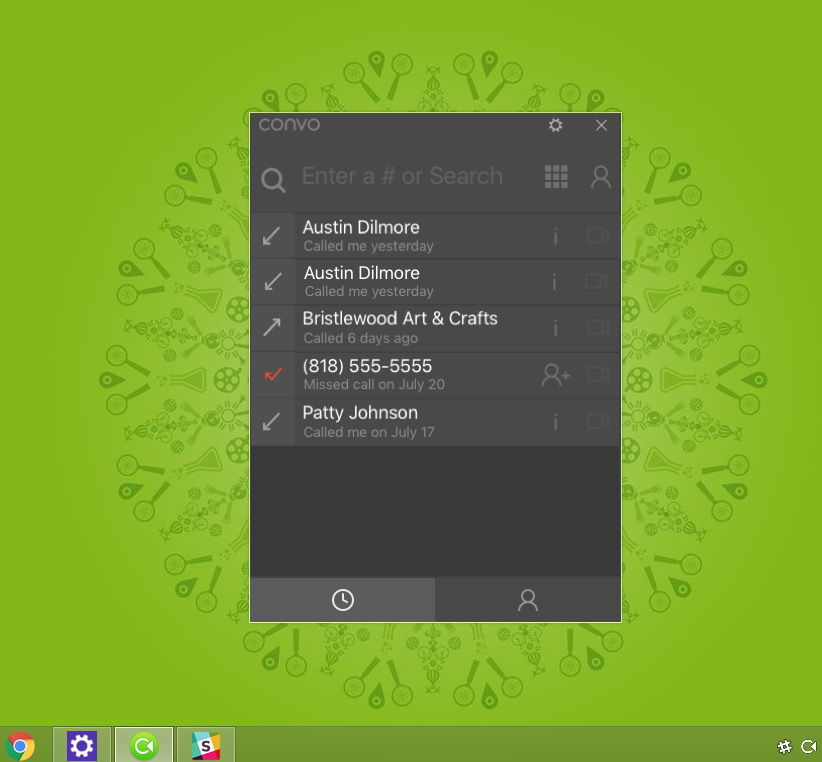
Our icons keep the information simple and visual. The clean design allows you to focus on what really matters: your calls.
Features
-
Universal search
-
Built-in notifications (Windows 10 only)
-
Dialpad
-
Call history
-
Contacts
-
Settings
Click here to see a more detailed guide on how to add and edit a contact, dial a number, and more.
Universal search
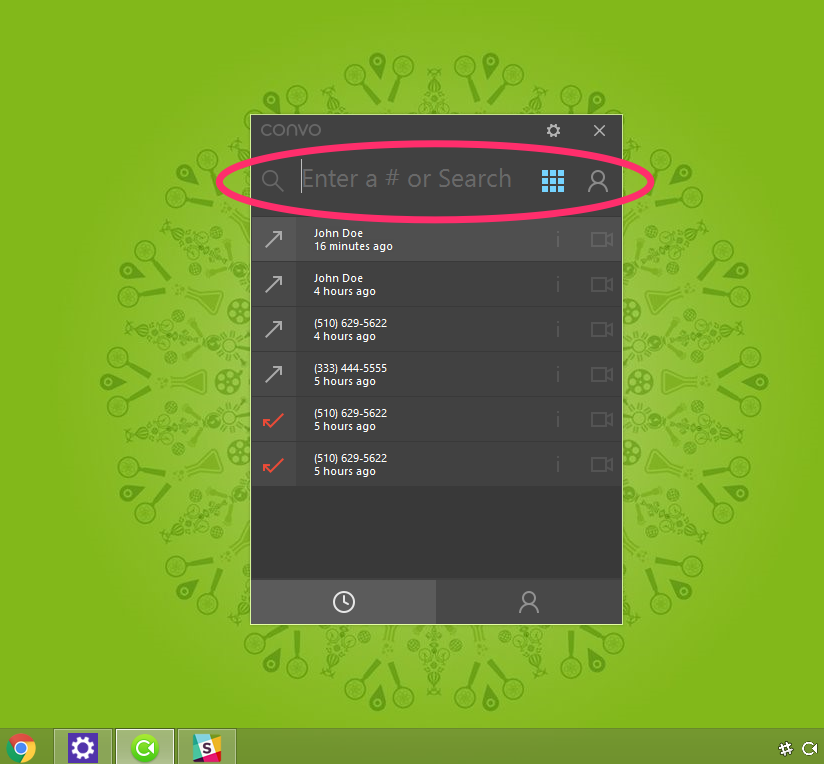
Our Convo for Windows is the first Convo app to be released with the universal search function. With one search bar, you can search for or dial any number or person. The dial pad will turn into a list of results, pulling from your call history and contacts.
Built-in notifications (Windows 10 only)
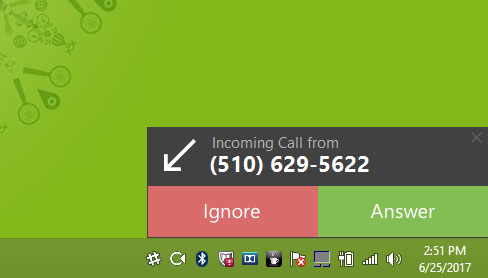
The built-in notification will show up on the bottom right of your Windows screen when you have an incoming call.
(NOTE: Upgrading to Windows 10 is not free. For more information about Windows 10, check out their support page.)
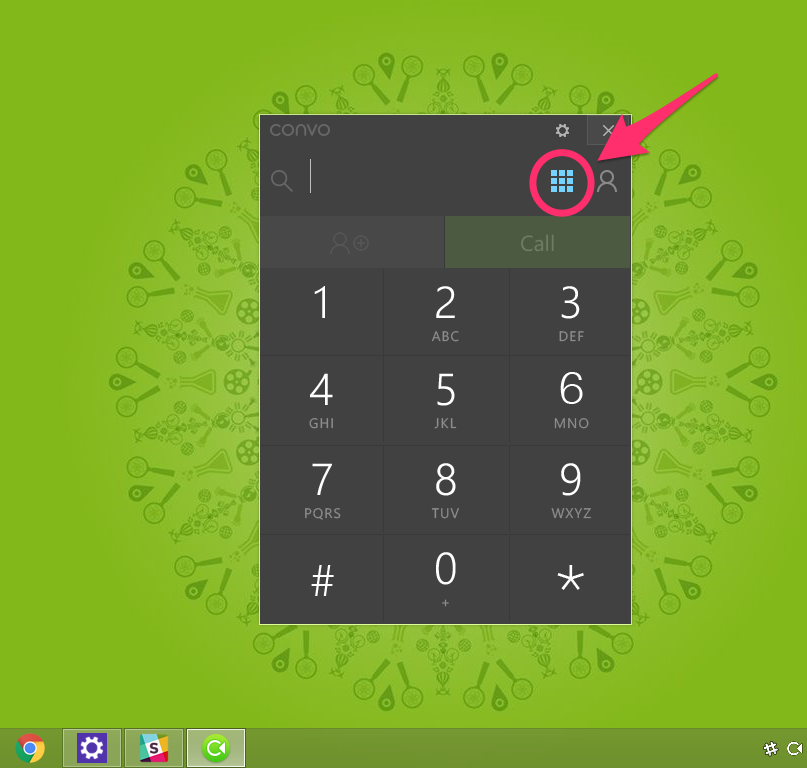
Dial pad
This is where you dial phone numbers to call.
Call history
See a chronological list of calls you made and received, and people you have added to your Contacts. The four icons in the call history represent:
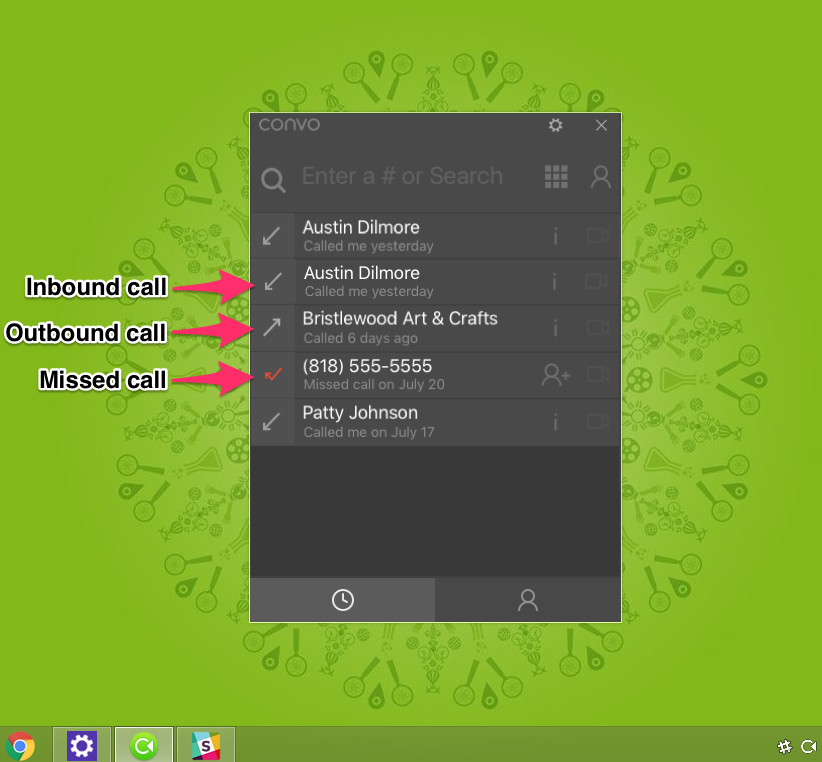
Inbound call – You received a call from this person.
Outbound call – You called this person.
Missed call – You did not answer a call from this person.
Contacts
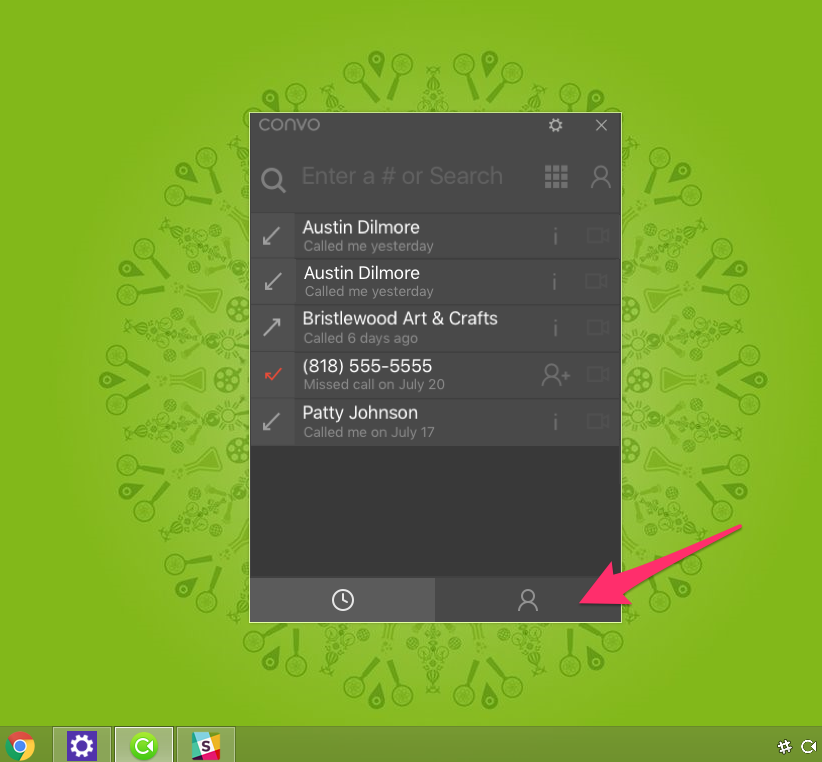
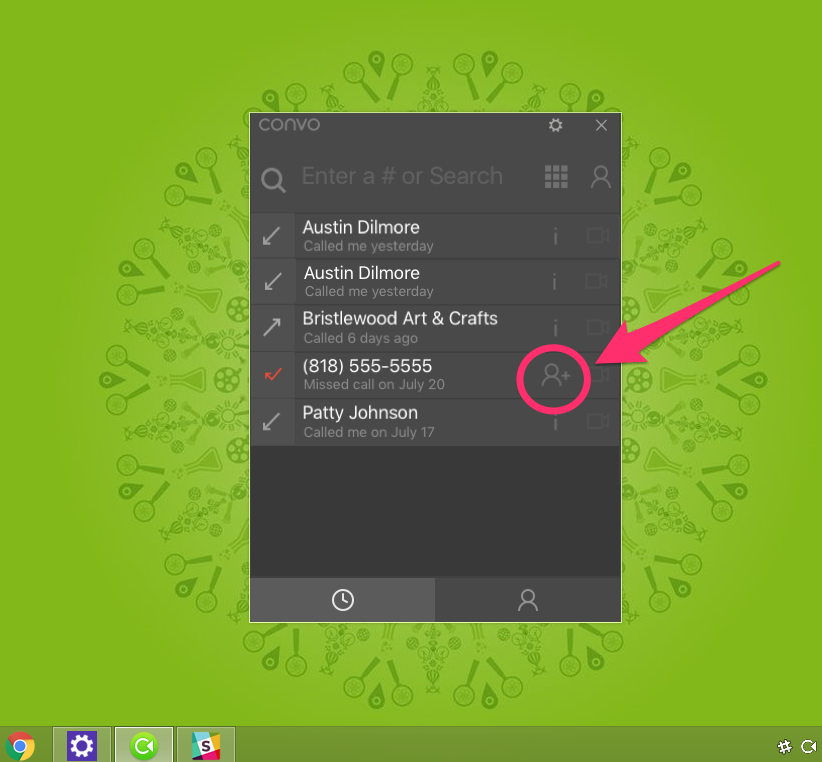
There are two ways to add a new person to your contacts.
Option #1
Click on the person icon at the bottom right.
Option #2
Click on the person icon inside the call information in your call history.
Settings
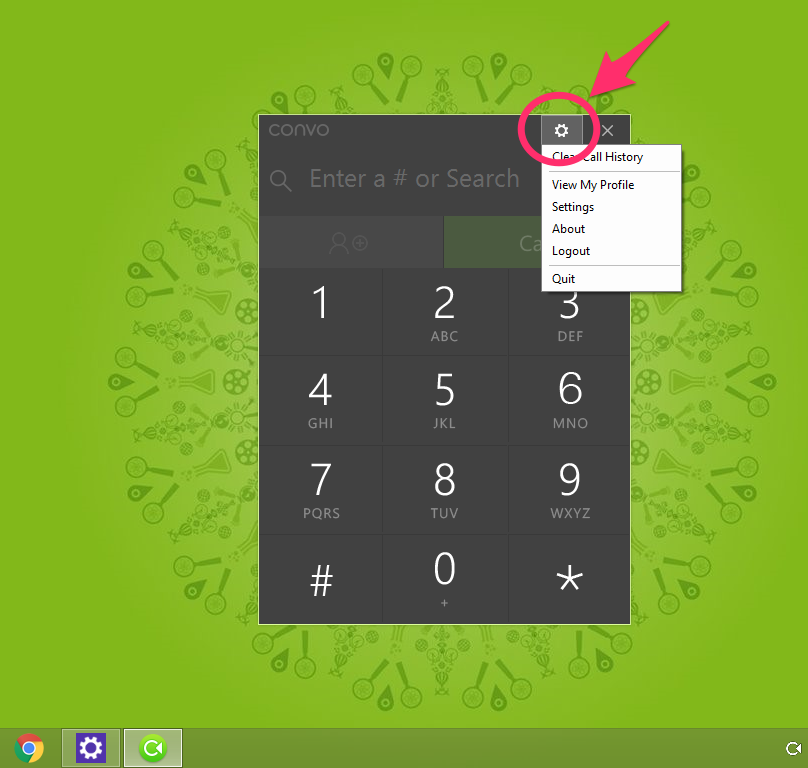
This is where you can modify your settings.