
-
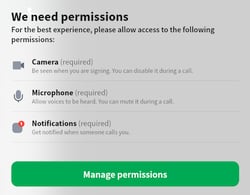
Open Chrome Browser. Go to call.convo.io. You should see the below:
-
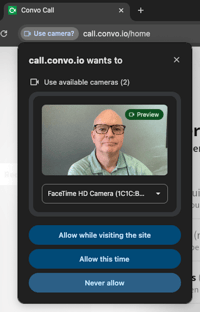
Sometimes, Chrome doesn't ask for permission to use your Camera, Microphone or send Notifications, important for Convo Call to work. If that happens, let's make a change in your Chrome to allow this.
Here's what the Pop-up normally looks like when Chrome is working correctly:
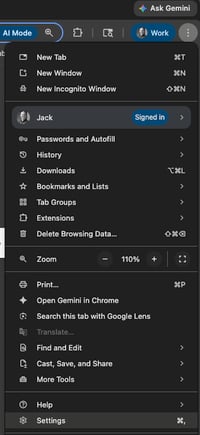
- How to fix: click the three "dots" on the top right of your Chrome window, and then click Settings near the bottom:
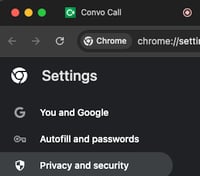
- Click Privacy and Security:
- Click Site Settings:
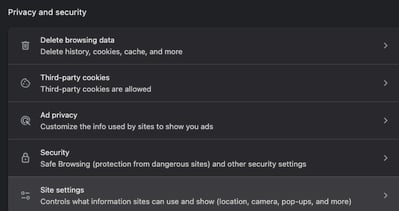
- Click Pop-ups and redirects:
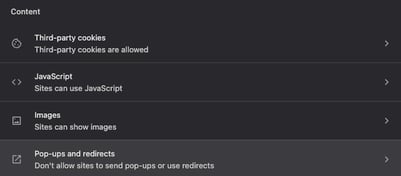
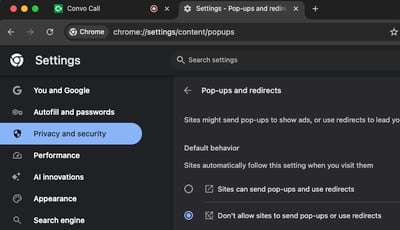
- Your setting may show "Don't allow sites to send pop-ups or use redirects". If you see this, this is what blocks Convo from getting the permissions it needs.
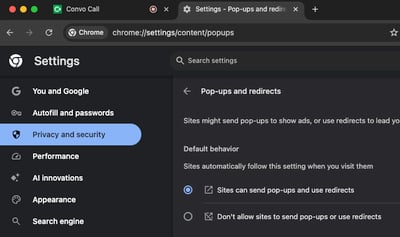
- Please click "Sites can send pop-ups and use redirects:
- If you prefer to only allow pop-ups from Convo Call, make sure "Don't allow sites to send pop-ups or use redirects" is clicked.
- Next, click Add next to "Allowed to send pop-ups and use redirects":
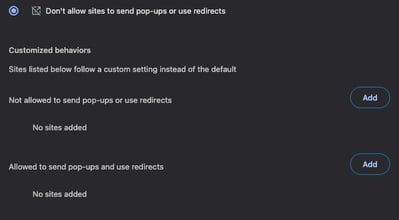
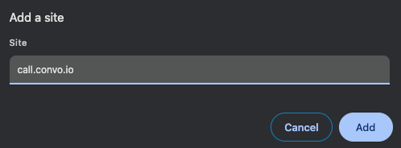
- Type call.convo.io and click Add:
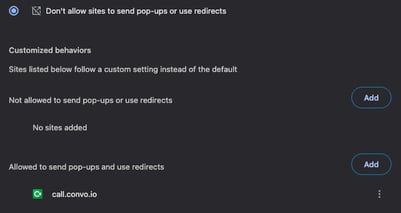
- You should see "call.convo.io" added to your Allow list:
- Go back to your Convo Call tab. Click the button to the left of "call.convo.io/home". You should see this:
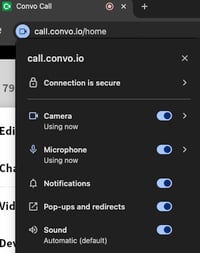
- Make sure your Camera, Microphone and Notifications are allowed. You should be able to use Convo Call now.