
Accessing On-Demand Interpreting via QR Code
Supporting Deaf customers with Convo’s QR code technology is simple. This guide explains how it works and how your team can support smooth conversations.
If your organization is new to Convo’s instant interpreting tool, here’s what to expect
What Is Convo’s QR Code Technology?
Convo’s QR code allows Deaf customers who use sign language to:
-
Scan a QR code
-
Connect instantly with a remote interpreter
-
Have a real-time conversation with your staff
No app download required.
What to Expect When a Customer Uses the QR Code
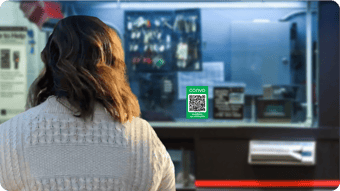
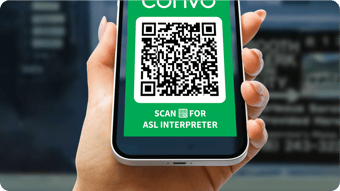
1. The Customer scans the QR code.
2. They allow access to their camera and microphone
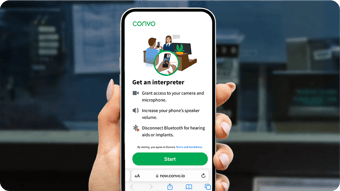
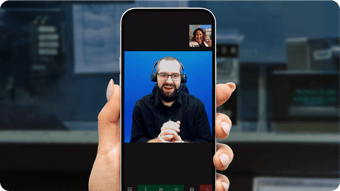
3. The interpreter appears on their screen.
There may be a brief moment between scanning and interpreter connection. This is normal.
During the Conversation
-
Make eye contact with the Deaf customer, not the interpreter.
-
Speak naturally and directly to the customer.
-
Listen to the interpreter’s voice coming from the customer’s device.
-
If the volume is low, gesture to increase the volume or move the device closer.
This keeps the interaction respectful and natural.
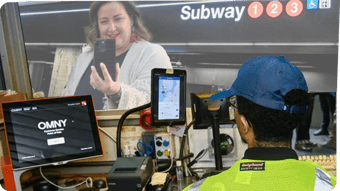

If a Customer Identifies Themselves Before Scanning
You can point to the QR code and let them decide if they would like to use it.
Remember:
Not all Deaf people use sign language. Always follow the customer’s preference.
If an iPhone Has Trouble Scanning the QR Code
Some older iPhones scan more reliably using Apple’s built-in Code Scanner. Here’s how to use it.
Using Apple’s Code Scanner
If Code Scanner Is Already in the Control Center
On iPhone with Face ID
-
Swipe down from the top-right corner.
-
Tap Code Scanner.
On iPhone with a Home button
-
Swipe up from the bottom edge.
-
Tap Code Scanner.
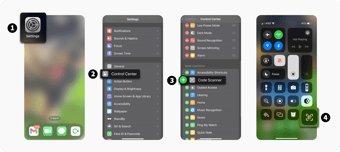
If Code Scanner Is Not in the Control Center
-
Go to Settings.
-
Tap Control Center.
-
Find Code Scanner.
-
Tap the green + icon next to it.
Code Scanner will now appear in Control Center.