
Use Convo for Zoom on your PC or Mac to get an ASL interpreter in any Zoom meeting — fast, simple, and built for Deaf participants.
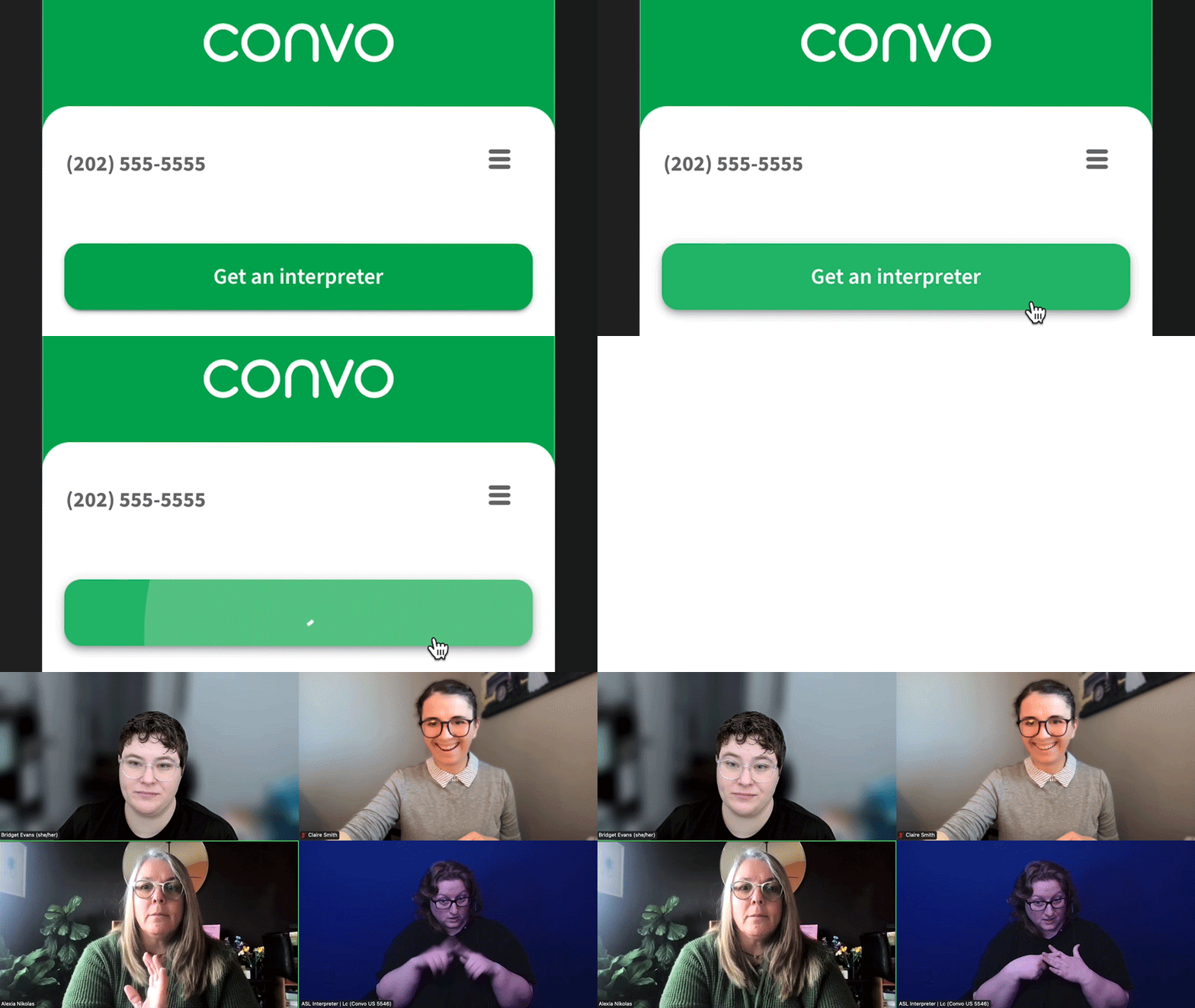
IMPORTANT NOTE: Convo for Zoom is for use only on a PC or Mac. It will not work on mobile. To learn more about Convo for Zoom, visit our landing page.
Getting Started
How to get Convo for Zoom app from the Zoom Marketplace
1. Open your Zoom desktop app.
2. Click the Apps tab on the top (if you don't see the Apps tab, click More).
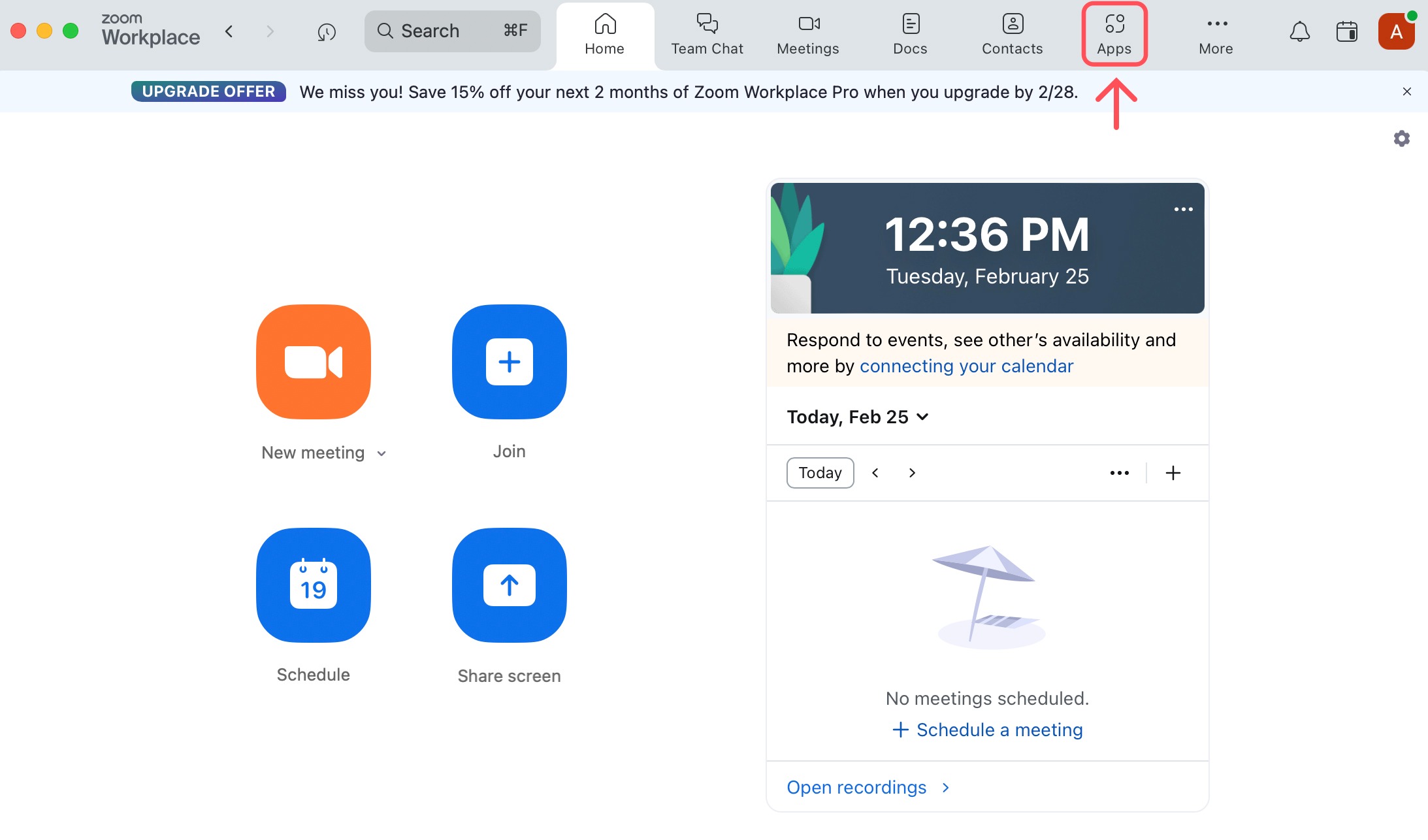
3. Click Add Apps.
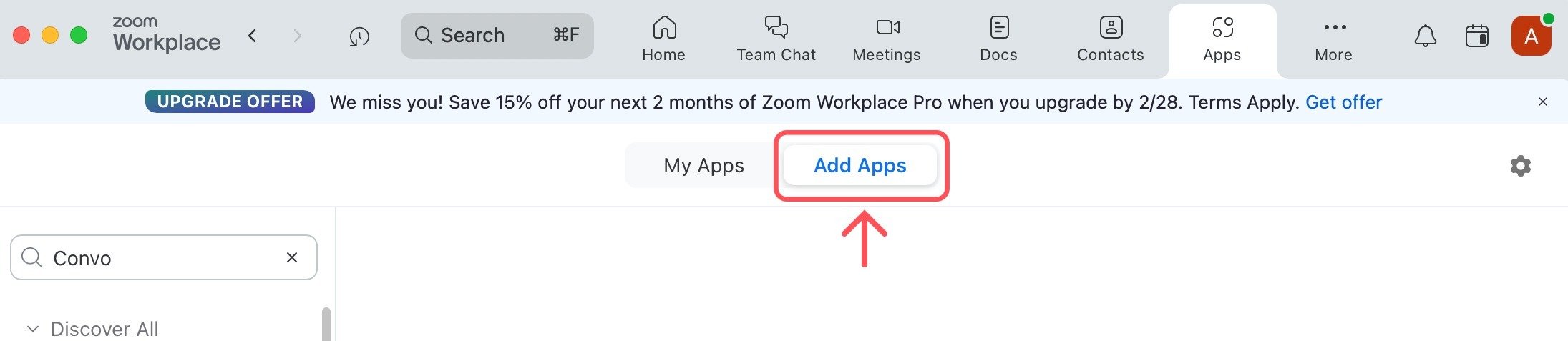
4. Search "Convo" in the search box.
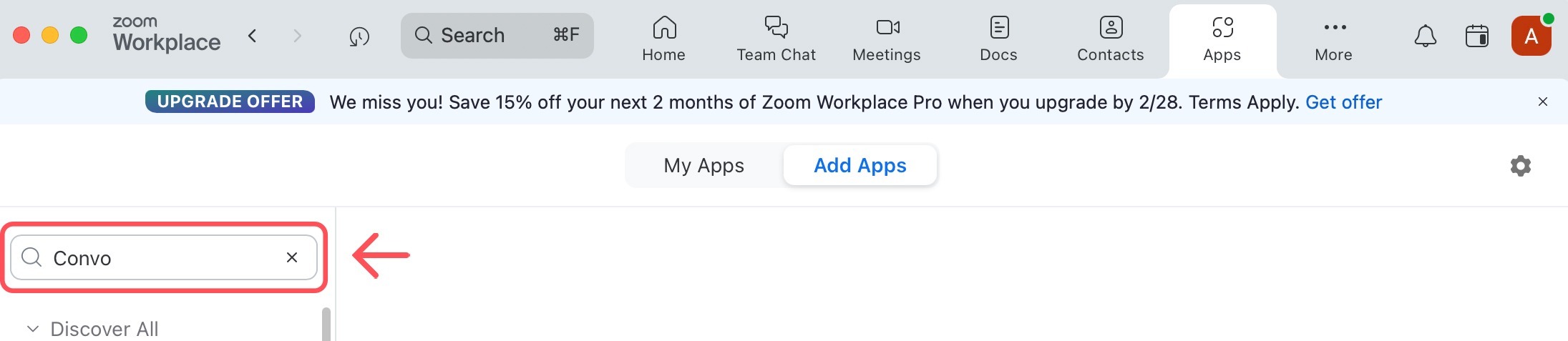
5. Click Add to install Convo for Zoom in your Zoom app.

6. After the app is installed, click Open.

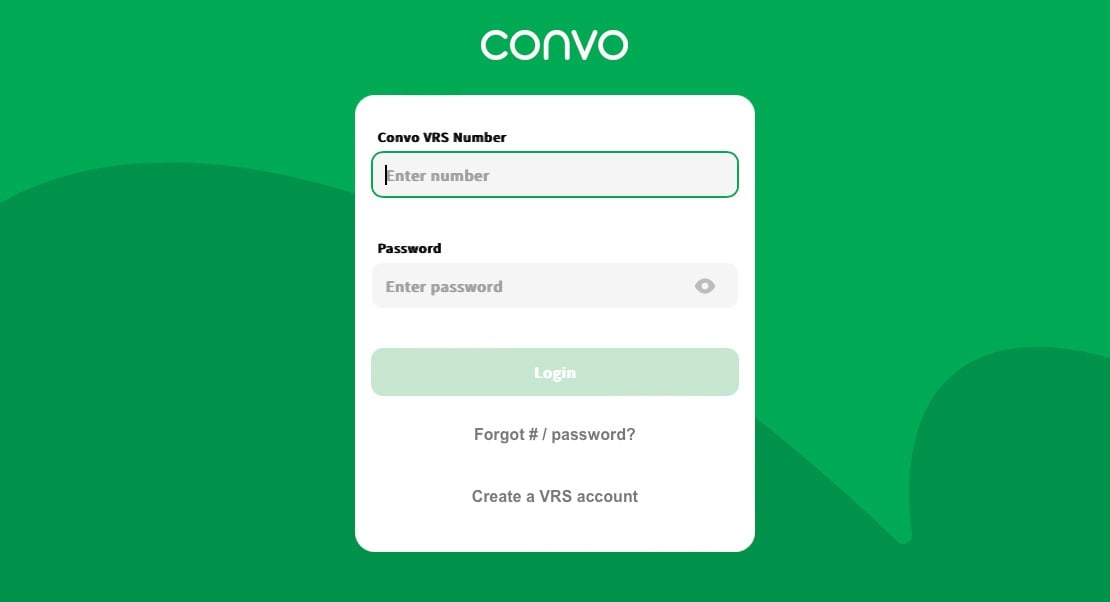
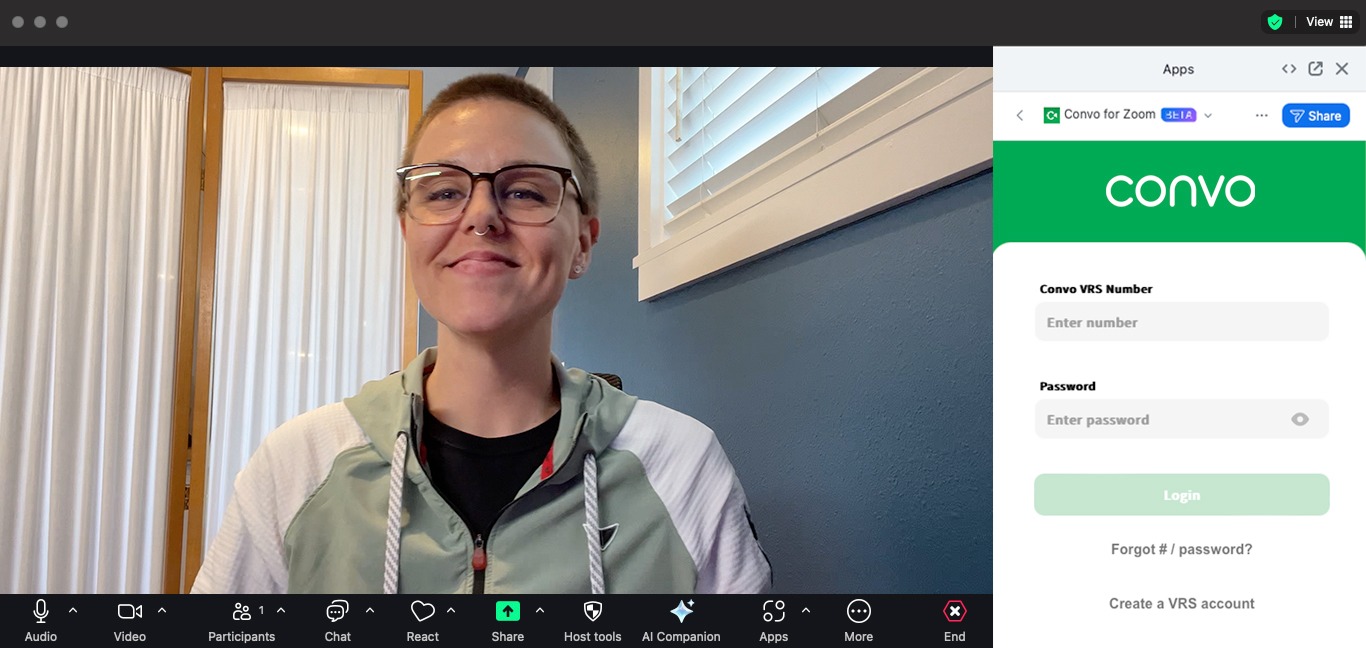
7. Login with your Convo VRS number and password. (Need a Convo VRS number? Sign up here.)
Already in a Zoom meeting? Here's how to get the Convo for Zoom app
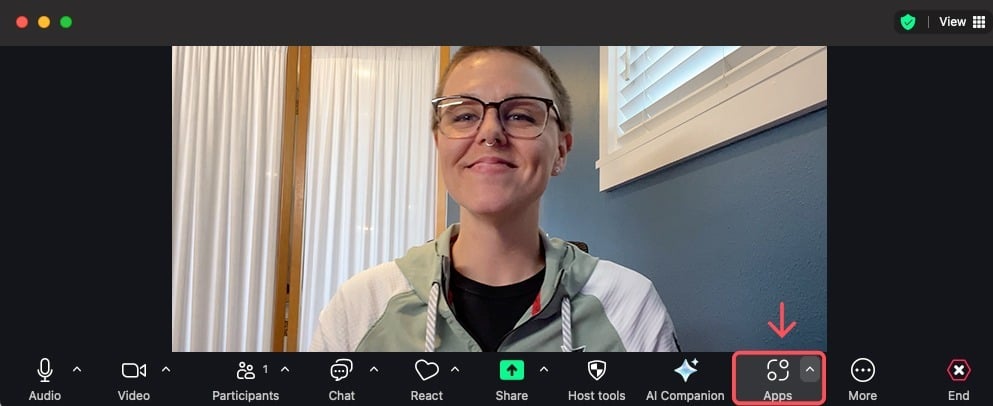
1. Click Apps at the bottom of the Zoom window.
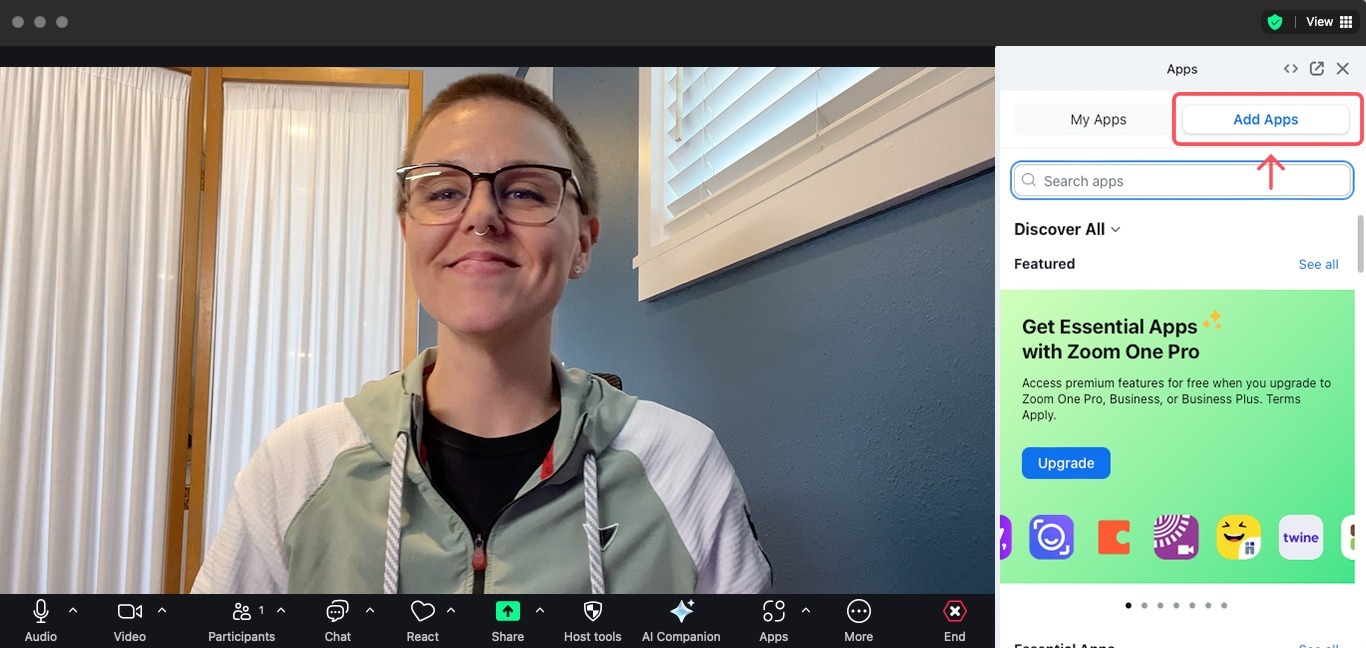
2. Click Add Apps in the right sidebar.
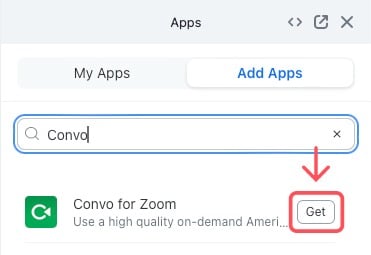
3. Type "Convo" in the search bar, and click Get to install Convo for Zoom.
4. Click Open to run Convo for Zoom.

5. Login with your Convo VRS number and password. (Need a Convo VRS number? Sign up here.)
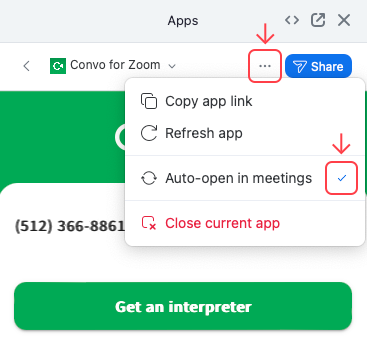
Bonus tip: Open Convo for Zoom automatically at every meeting by clicking Auto-open in meetings:
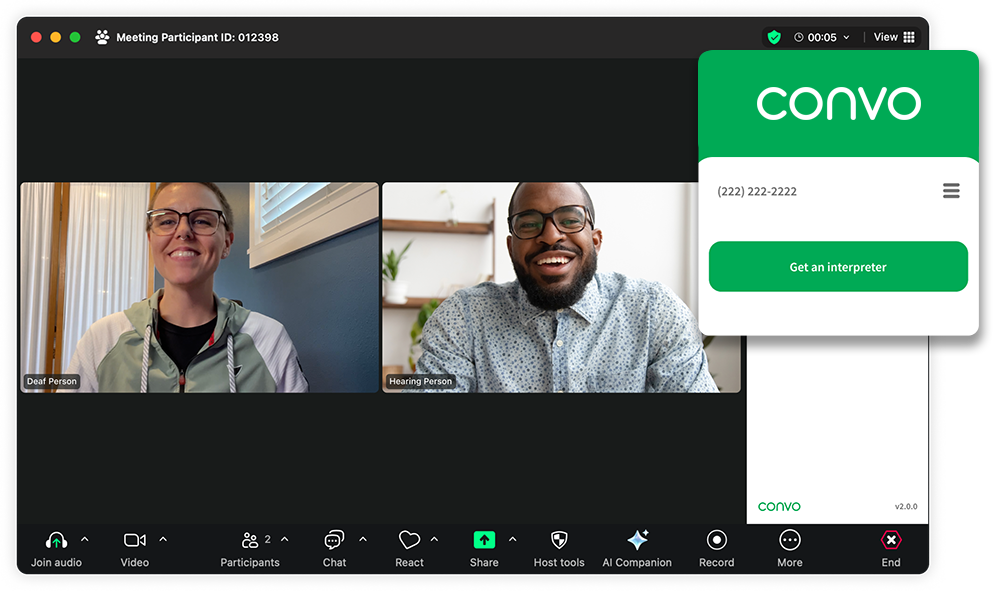
Getting an ASL interpreter
Getting an ASL interpreter if you ARE the meeting host
When you're in the meeting, click Get an interpreter in the Apps sidebar on the right.
-
IMPORTANT: Please get an interpreter before the meeting if you know the meeting will start right away. FCC rules require interpreters to start interpreting after only a short delay.
IMPORTANT: Please get an interpreter before the meeting if you know the meeting will start right away. FCC rules require interpreters to start interpreting after only a short delay.
Getting an ASL interpreter if you’re NOT the meeting host
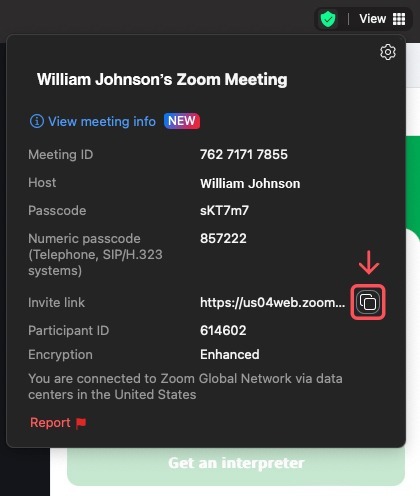
**IMPORTANT NOTE: Please don't copy the invite link from outside Zoom (email, Slack, etc). These links may not have the passcode built in, which our interpreters need to enter your meeting. Instead, please copy the full invite link using the below steps.
1. Enter the meeting.
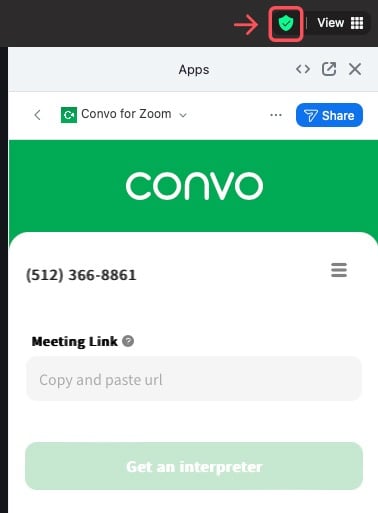
2. Click the green "shield" icon on top of your Zoom window, then the "copy" icon:
Prefer to use hot keys? Here's how to copy the full invite link:
For PC: Alt + i
For Mac: Shift + Command + i
Click Apps and select Convo for Zoom.

4. Paste the meeting link in the copy and paste URL box.
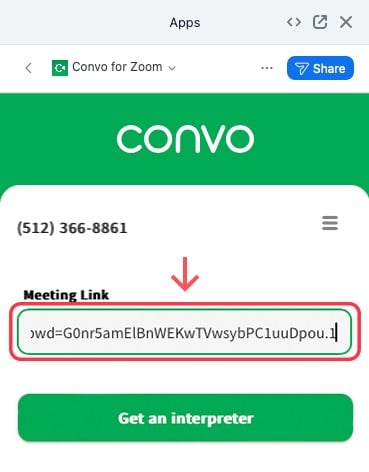
5. Click Get an interpreter.
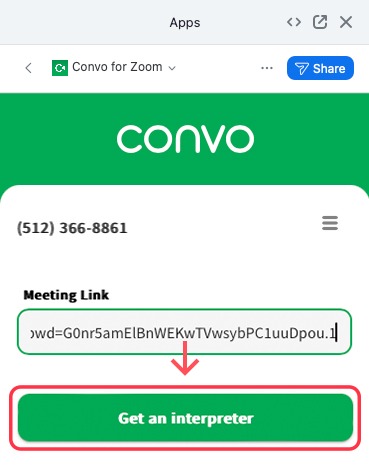
6. When the name of the interpreter appears, they will appear in the Zoom meeting soon after.
7. If the waiting room is used by your host, use Zoom chat to ask your host to allow the interpreter into the meeting. Please be prepared to ask the host to allow in additional/replacement interpreters.
In a meeting where another Deaf person got the interpreter but has to leave early? Here's what to do to get an ASL interpreter
FYI: FCC regulations require our interpreter(s) to leave the meeting if the original requester leaves the meeting and there is no other Deaf person with a Convo VRS number.
We recommend that if there will be more than one Deaf participant, both (or all) download Convo for Zoom and log in with their Convo VRS number before the meeting starts.
This way, if the first Deaf requestor leaves, another participant can click Get an interpreter right away.
If you're not the original Deaf requestor and need an interpreter:
1. Click the green shield icon near the top-right corner of your Zoom meeting window.
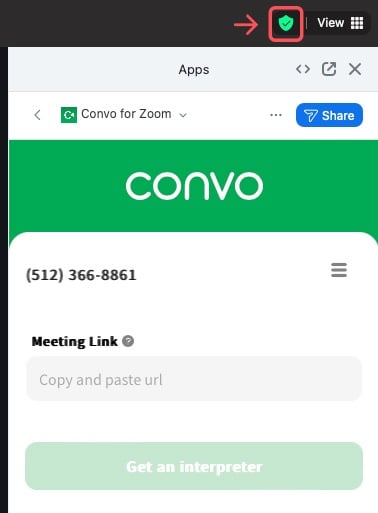
2. Click the copy icon to copy the meeting link.
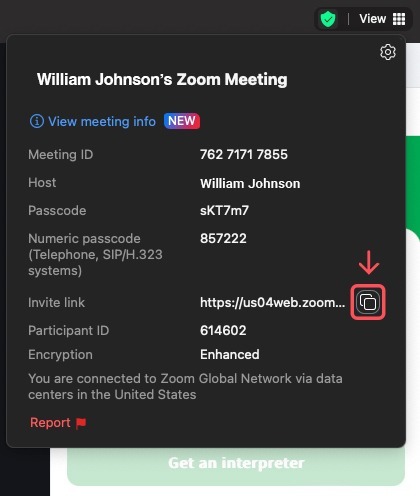
3. Paste the link into the Convo for Zoom link area.
4. Click Get an interpreter.
How to remove Convo for Zoom
-
Select Zoom's Settings
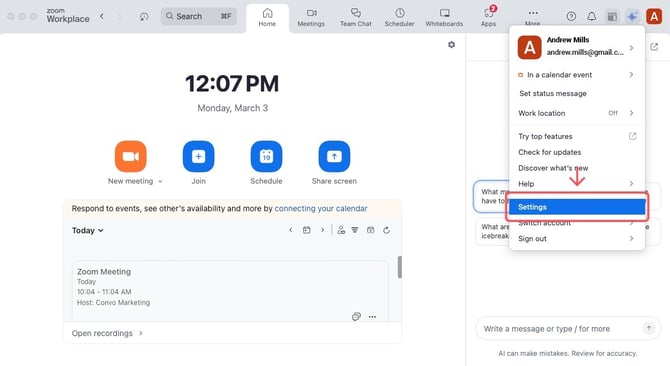
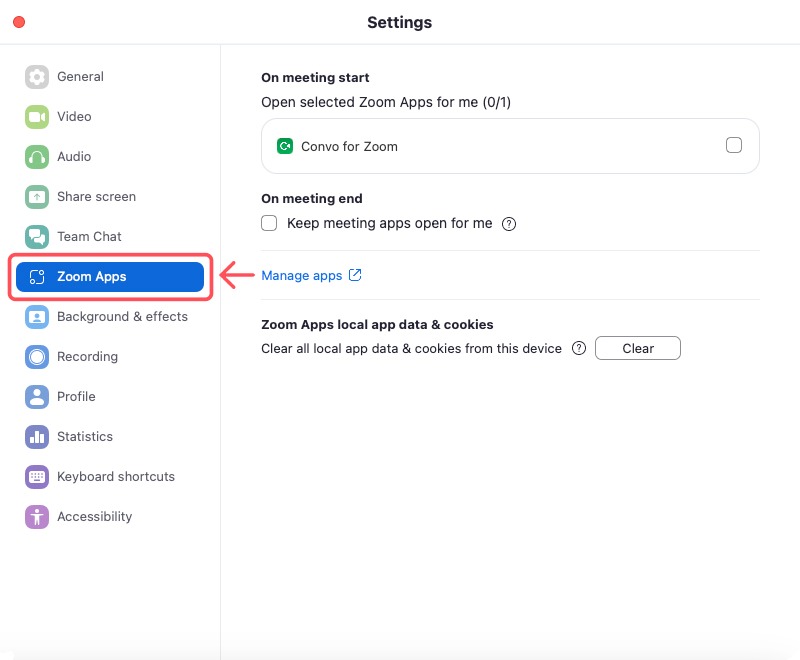
2. Select Zoom Apps.
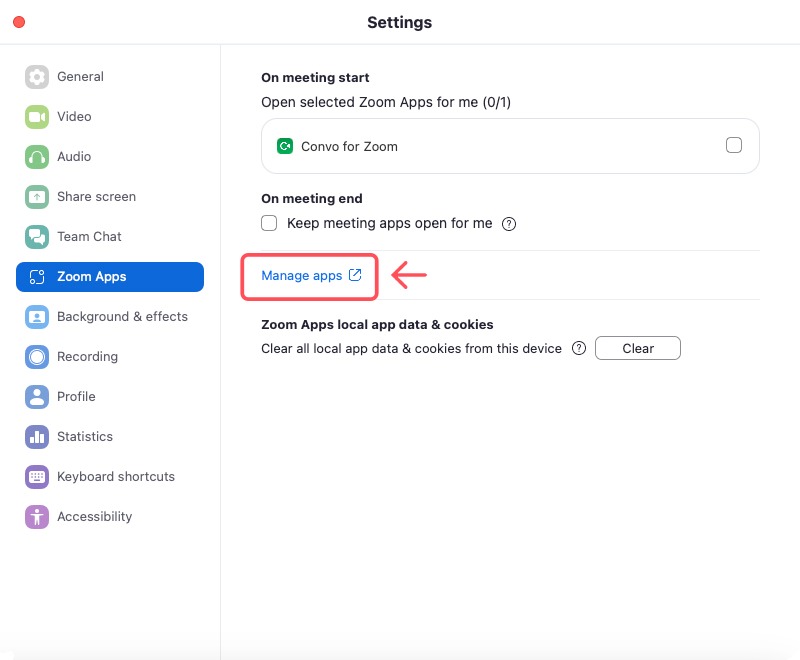
3. Click Manage apps.
4. Click Remove.
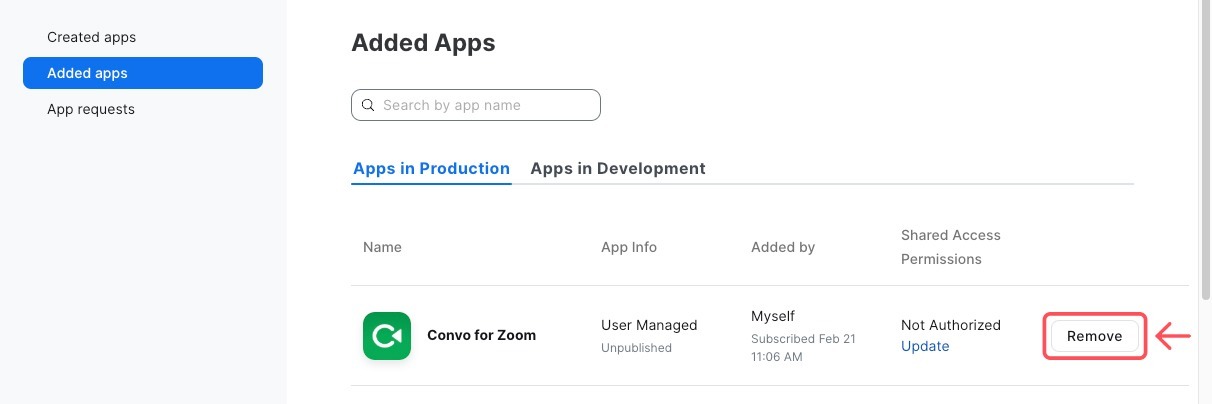
5. Click Remove again.
