
Activate your Convo Now (CN) account
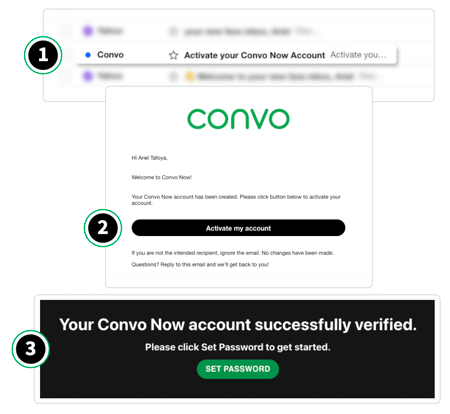
- Open email from Convo with subject Activate your Convo Now Account.
- Click Activate my Account button to activate your account.
- Click Set Password to set up your new password. Make sure it has 8 characters that include:
-
-
One capital letter
-
One number
-
One special character
-
NOTE: If you have a Convo VRS account, that password is separate from Convo Now.
4. Enter your email address and click Submit.
5. Open the second email from Convo with the subject line "Convo Now new password request".

6. In the second email, click Set password.
7. Enter your new Convo Now password.

Go to Convo Now on the web
-
Open your web browser on your PC or Mac and go to now.convo.io
-
Enter your email and Convo Now password
-
Click LOGIN button
-
Forgot your Password? Click Forgot Password? to get an email with a password reset link.

-
When your browser asks for permission to use your computer's camera and microphone, click Allow.

-
Choose between your Main account or Guest account.
-
Main account: for using Convo Now with an interpreter.
-
Guest account: for features used by Convo customers in countries outside the United States.

-
Get an interpreter
-
Click Get a video interpreter to get an interpreter.
-
You'll see what position you are in the queue (line).
-
Your interpreter's name will appear. Click Join to connect, or the system will auto-connect in 5 seconds.
-
Be sure your computer's volume is set high enough for the hearing person with you to be able to hear your interpreter.
-
When done, click End Call.

Turn on/off video privacy
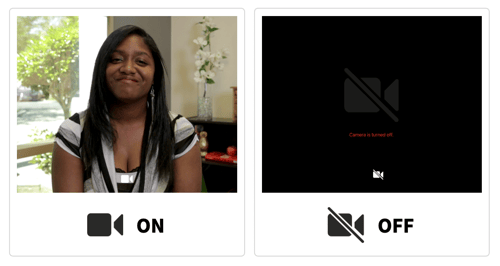
Click the camera icon at the bottom of the video feed to turn on/off video privacy.
View your usage history
View your usage history
-
Click Call Log on the top of your web browser.
-
By default, your full history will be listed. Use the date function to narrow down to a date range if needed.

View your organization's usage history (for accounts with multiple users only)
-
Click Usage Report on the top of your web browser.
-
Select the billing code of the account you need information on.
-
By default the full history will be listed. Use the date function to narrow down to a date range if needed.

Different account functions
-
Click your name or avatar on the top right of your web browser.
-
To see information on your account (and others on your account if you are the lead user of a multiple-user account), click Profile.
-
To edit camera, microphone, and speaker settings, click Settings.
-
To change your password, click Change Password.
-
To access the Help Center for Convo Now, click Help.
-
To log out, click Logout.
